Ashampoo Slideshow Studio – installation
How to install Ashampoo Slideshow Studio 2019 and activate its free full-version licence step by step.
What do you need?
- A Windows computer: The program works on Windows 10 and 11. It isn't available for Mac or Linux.
- A working email address: The free licence is activated by email.
- An internet connection: Needed for the download and activation.
- About 10 minutes.
The screenshots in this guide are from the Finnish version of the program, so the button names may differ slightly from your version.
Download the installer
Download the installer from the website of DigiKUVA (a Finnish photography magazine) or from Ashampoo's official download link. The free version is the older 2019 version, but its licence is permanent – there are no monthly or annual fees.
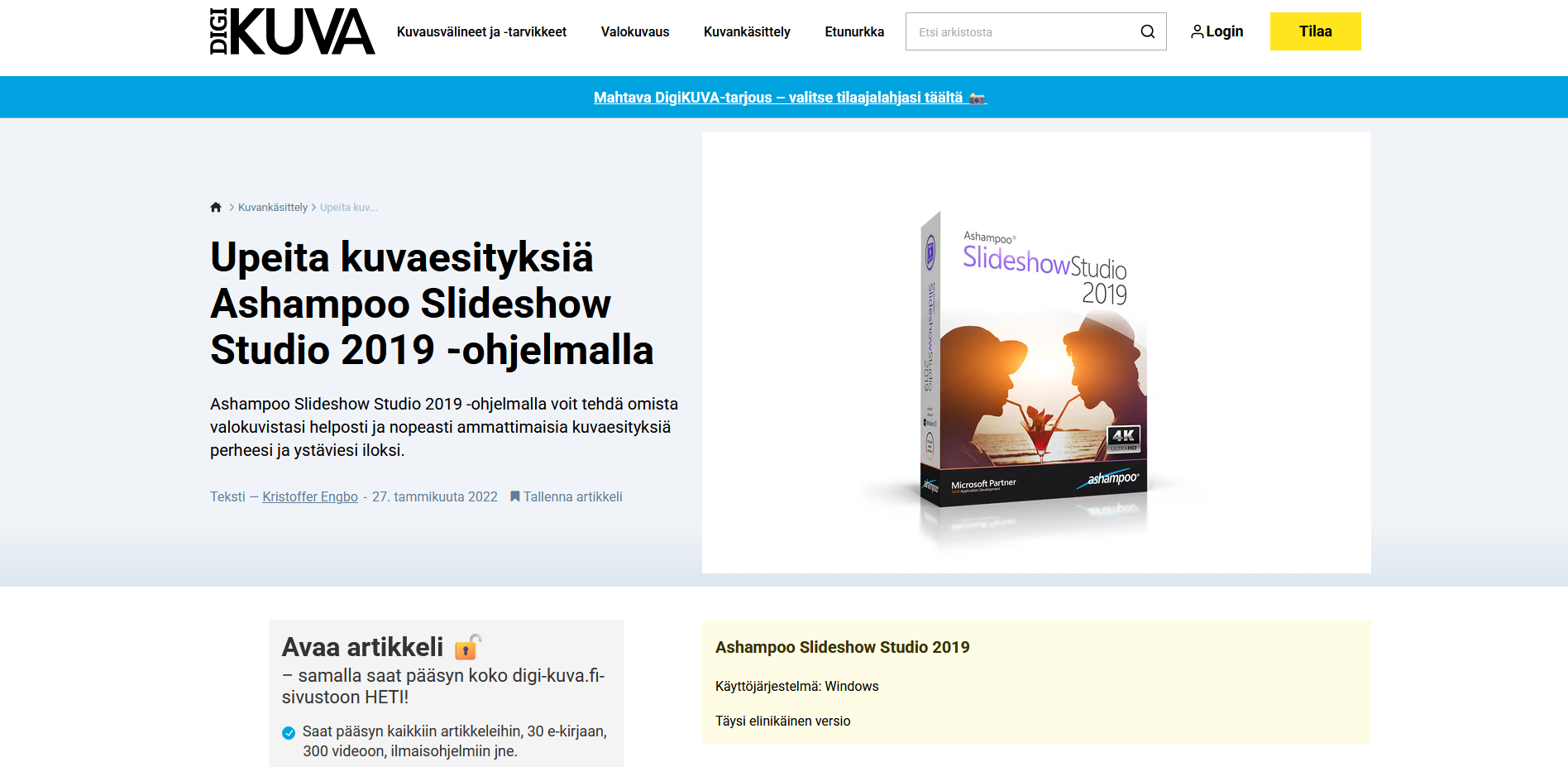
Download only from a trusted source. Don't download the program from unknown download sites, because their installation packages may include adware or malware.
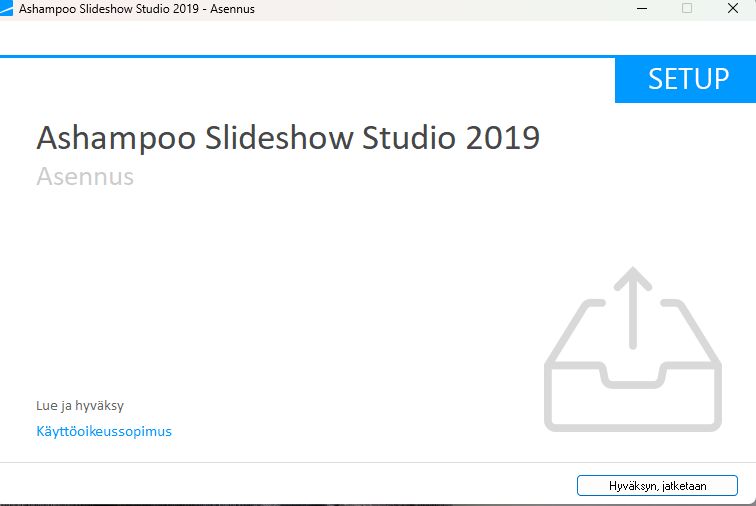
Licence agreement
Open the downloaded installer by double-clicking it. If Windows asks whether the program may make changes to your device, choose Yes. Read the licence agreement and accept the terms by clicking the I agree, continue button in the bottom right corner.
Installation settings
Choose whether to create a desktop shortcut (recommended). You can also change the installation folder if needed, but the default folder suits most people. Continue by clicking Next.
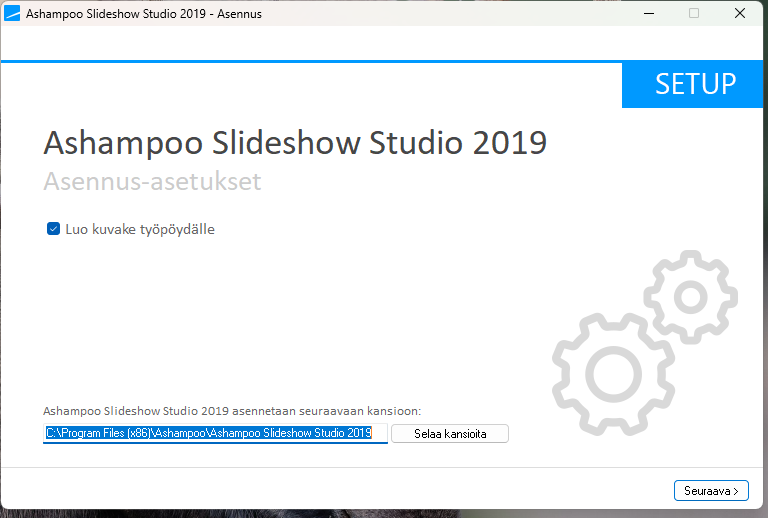
Read every window: The installer may also offer other programs or a newsletter subscription. Untick the ones you don't want.
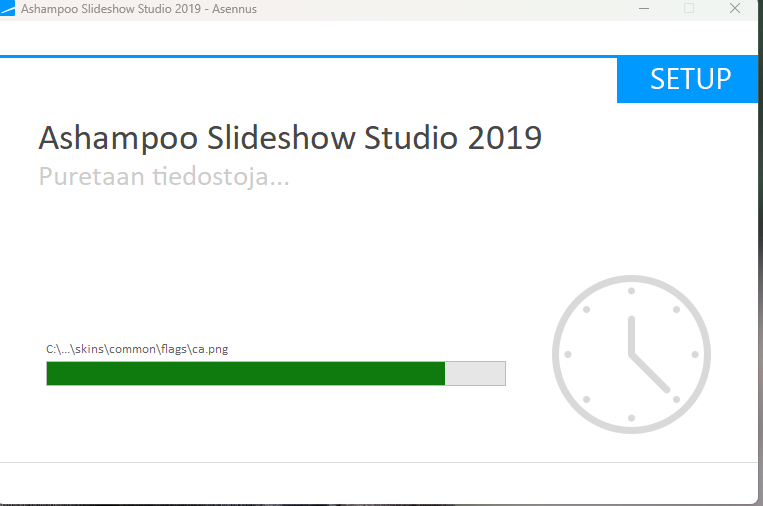
Copying the files
The installer unpacks and copies the necessary files to your computer. Wait until the progress bar is complete. This usually takes less than a minute.
Installation finished
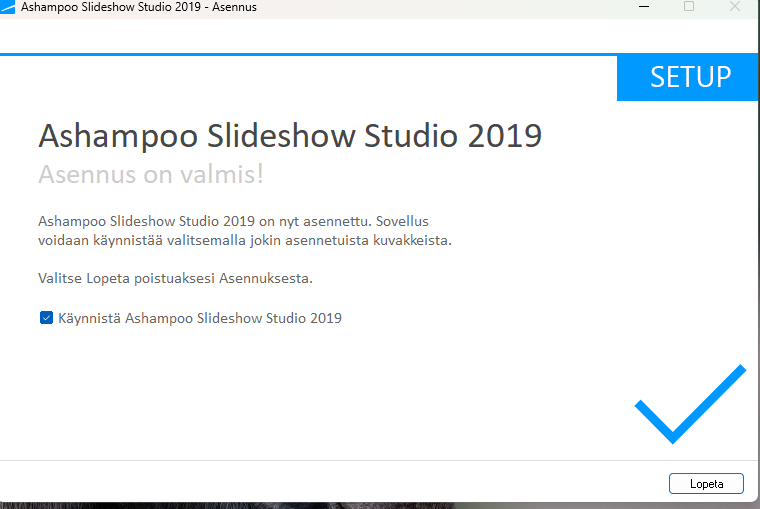
The installation is finished! Leave the "Start Ashampoo Slideshow Studio 2019" box ticked and click Finish.
Free activation
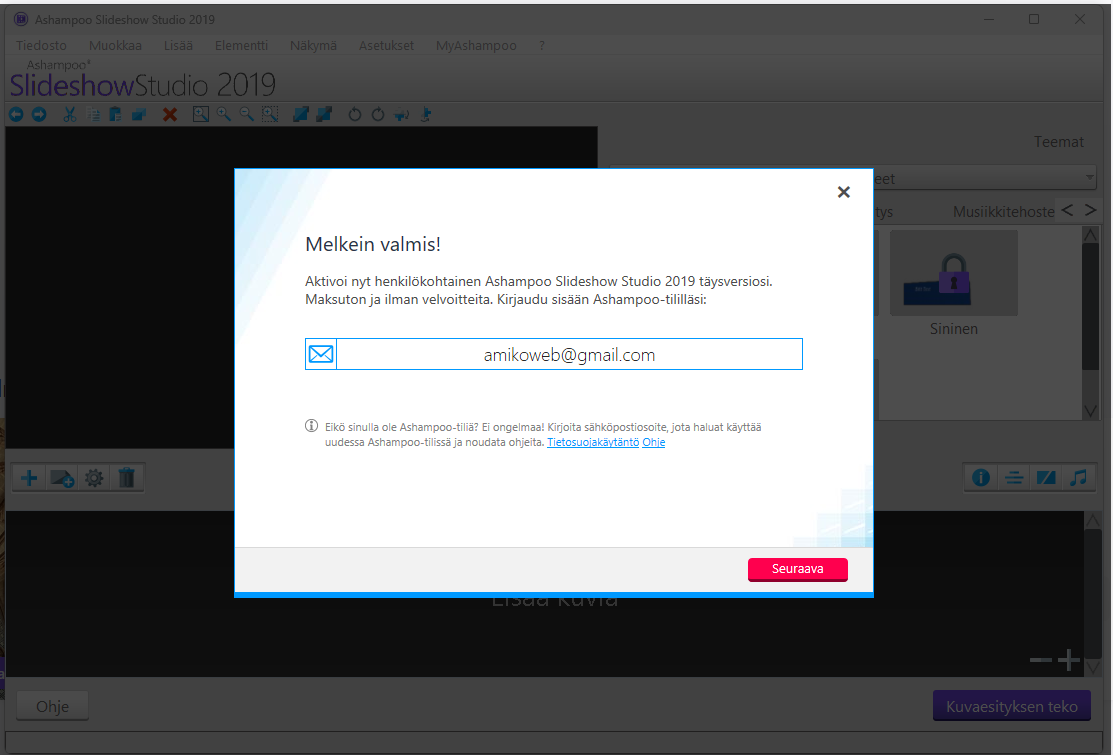
When the program starts for the first time, it asks for activation. Type your own email address in the field (e.g. your.name@example.com) and click Next.
Ashampoo sends a message to your email. Open the message and confirm your address with the link in it, and the full version is activated.
Save the licence key: If you receive a licence key by email, keep it safe. You'll need it if you reinstall the program later or install it on a new computer.
If something doesn't work
- The confirmation email doesn't arrive: Check your spam folder. The message may take a few minutes to arrive.
- Windows blocks the installation: If a "Windows protected your PC" notice appears, make sure the file was downloaded from a trusted source. Then choose More info → Run anyway.
- The program asks you to buy an upgrade: The program may advertise a newer version. The free 2019 version still works normally – close the window if you don't want to upgrade.
- The program won't start: Restart the computer and try again. Also make sure Windows is up to date.
Installation done? Next you'll learn to make your first slideshow.
Making a slideshow