Photoshop AI tools
Get to grips with Generative Fill and change your photos in seconds with nothing but text prompts.
Adobe Photoshop's generative AI (Adobe Firefly) is changing the way we edit photos. You can add new things to a photo, remove distracting elements or extend the edges of a photo with nothing but text prompts.
Every AI edit automatically creates a new Generative Layer. So your original photo always stays completely unchanged and safe!
1. Removing things from a photo
Forget complicated cloning tools. AI makes people, litter and power lines disappear in an instant. For small removals the fastest is the Remove Tool (shortcut J): just paint over the object you want to remove. For larger areas, Generative Fill works well:
- Choose the Lasso tool (shortcut L).
- Draw a loose selection around the object you want to remove.
- Click Generative Fill in the bar that appears.
- Leave the text field completely empty and click Generate.
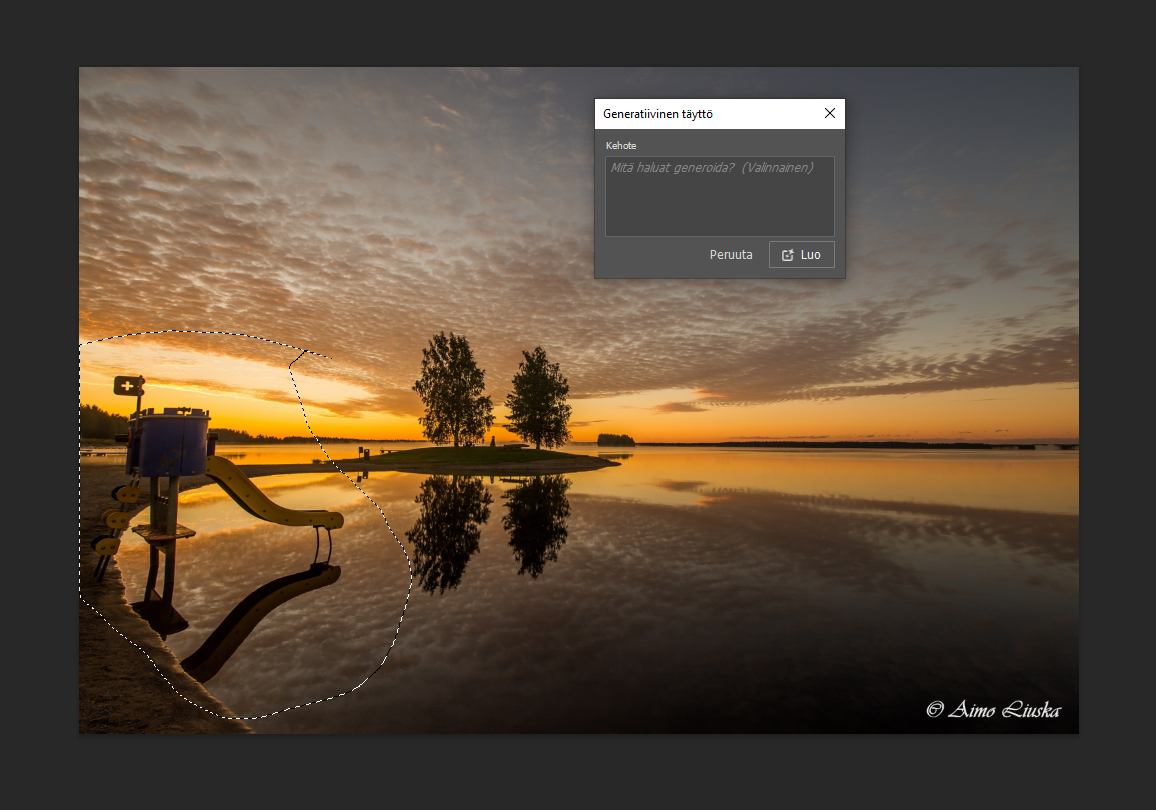 Example: removing extra objects with a selection.
2. Adding new content to a photo
Do you want to add a fine car to an empty road or a hot-air balloon to the sky?
- Make a freehand selection of the area where you want the new object.
- Click Generative Fill.
- Type what you want in the text field, for example "vintage red car". Firefly also understands other languages, such as Finnish, but in English the result is sometimes more accurate.
- Click Generate. You can choose from three different variations in the Properties panel.
3. Extending a photo (Generative Expand)
If a photo is cropped too tightly or you need a horizontal photo from a vertical one for a website banner:
- Choose the Crop tool (shortcut C).
- Drag the edges of the photo wider in the direction you want.
- Make sure the Fill option in the top bar says Generative Expand.
- Click Generate (leave the text field empty). The AI continues the landscape automatically.
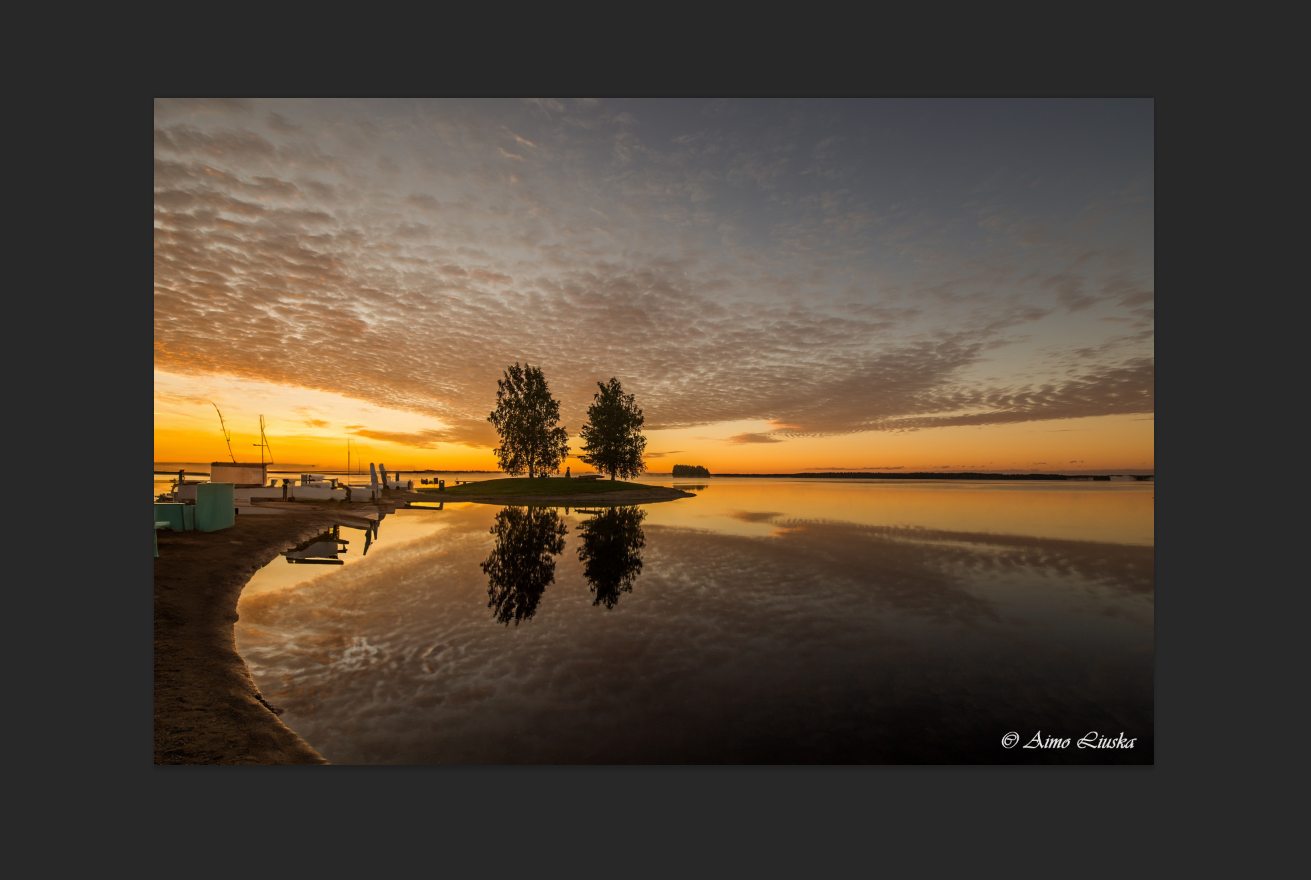 Example: extending the image area to the sides with Generative Expand.
Always make loose selections. Don't try to select the object to the millimetre.
💡 The AI needs a little of the surrounding area in the selection to understand the direction of the original light, the shadows and the quality of the noise. That way the result becomes completely invisible.